
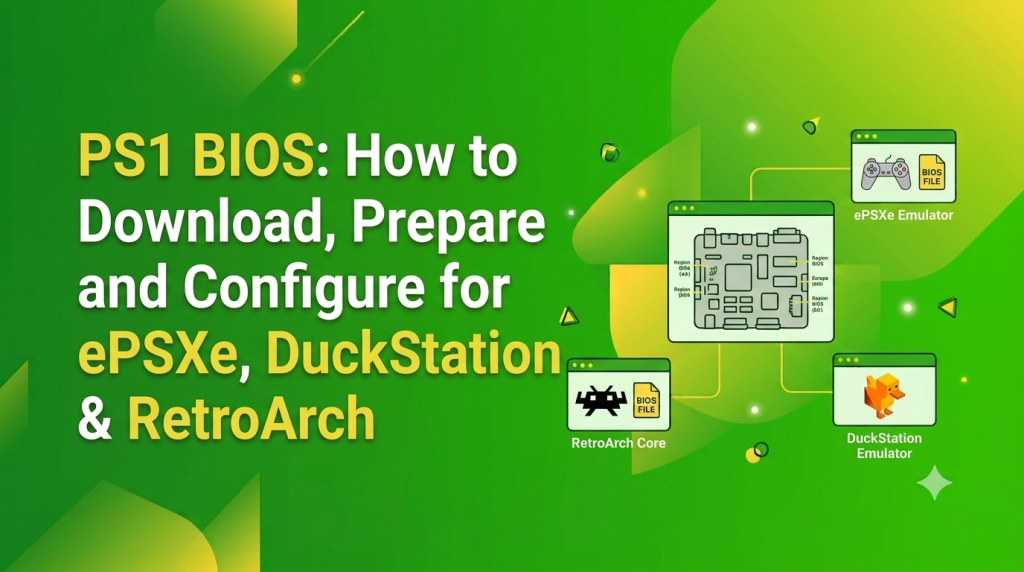
A PlayStation 1 (PS1) BIOS is the firmware that powers the original Sony PlayStation console. Many emulators rely on this firmware to accurately reproduce console behavior, improve game compatibility, support memory cards, and display the authentic PlayStation startup sequence. This guide explains BIOS versions, legal considerations, file preparation, and configuration for popular PlayStation emulators.
What Is the PS1 BIOS and Why Emulators Need It
The PS1 BIOS is low-level firmware stored inside every original PlayStation console. When the console starts, the BIOS initializes hardware, performs system checks, verifies game discs, and prepares software for execution.
Although some emulators offer High-Level Emulation (HLE), using an authentic BIOS generally delivers greater accuracy, improved compatibility, and behavior that closely matches the original PlayStation hardware.
PS1 BIOS Versions and Regions
Sony released multiple BIOS revisions throughout the PlayStation’s lifetime. Each region received firmware designed for its own hardware and software library.
NTSC-U (USA) Overview
The NTSC-U BIOS is designed for PlayStation consoles sold in North America. It provides the highest compatibility for games released in the United States and Canada.
PAL (Europe) Overview
The PAL BIOS supports European PlayStation consoles and is recommended for games originally released in PAL regions.
NTSC-J (Japan) Overview
The NTSC-J BIOS is intended for Japanese PlayStation consoles and provides the most authentic experience when running Japanese PlayStation software.
Other Regional Variants (e.g., Brazil)
Additional BIOS revisions were produced for certain markets and hardware models. These versions are primarily useful for preservation projects, hardware research, and compatibility testing with specific regional releases.
Choosing the Right BIOS for Compatibility and Language
For the best compatibility, choose a BIOS that matches the region of your PlayStation games. Matching regional firmware can improve startup reliability, language behavior, and compatibility with titles released for specific markets.
Legal, Safety and Trusted Sources for PS1 BIOS
Because the PlayStation BIOS is copyrighted software, obtaining and using it should always comply with local copyright laws and licensing requirements.
Copyright and Legality Basics
The BIOS remains protected by copyright. Emulator developers generally do not distribute BIOS firmware and instead expect users to provide firmware obtained from hardware they legally own.
How to Verify Sources and Avoid Malicious Files
Unofficial BIOS downloads may contain modified, incomplete, or malicious files. Whenever possible, use firmware that you have personally dumped from your own PlayStation console and avoid downloading BIOS files from unknown sources.
Using Checksums to Confirm File Integrity
Compare the BIOS checksum or cryptographic hash with a trusted reference before using the firmware. Matching checksum values help confirm that the BIOS PSX has not been modified or corrupted.
Downloading and Preparing Your PS1 BIOS File
Preparing BIOS files correctly helps ensure reliable emulator detection and reduces configuration problems.
Common File Types and Typical Filenames (SCPHxxxx.bin)
Most PlayStation emulators support BIOS firmware stored as binary image files. BIOS filenames often follow PlayStation model naming conventions and should generally be preserved as is.
Verifying Checksums and File Integrity
Before configuring an emulator, verify the BIOS using trusted checksum references. This confirms that the firmware is authentic, complete, and suitable for use with compatible PlayStation emulators.
Renaming, Extracting and Correct Folder Structure for Emulators
Extract BIOS files from compressed archives before use, then place them in the emulator’s designated BIOS or System directory.
Maintaining a clear folder structure and preserving original filenames helps prevent BIOS detection issues and simplifies future emulator updates.
How to Configure PS1 BIOS in Major Emulators
After preparing the BIOS, configure your preferred emulator to correctly detect and use the firmware.
ePSXe — Placing the BIOS, Setting Paths and Quick Tips
Copy the BIOS file into the ePSXe BIOS folder or specify its location through the emulator settings if automatic detection does not occur.
Once the BIOS is recognized, configure graphics, audio, controller, and memory card settings before launching a known-compatible PlayStation game. If the BIOS is not detected, verify the folder path, filename, checksum, and emulator version before attempting further troubleshooting.
DuckStation — BIOS Placement, Region Selection and Recommended Options
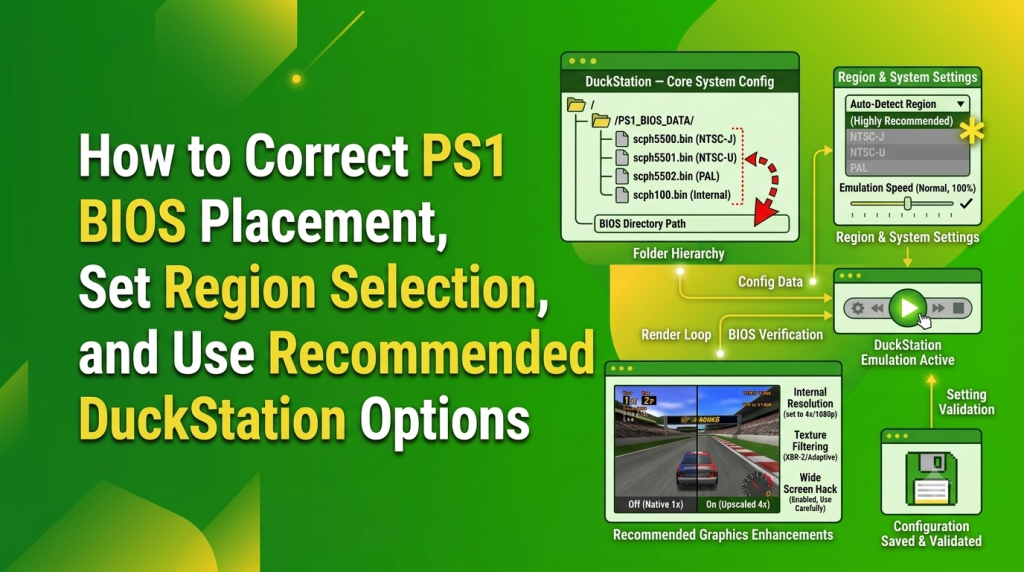
Copy the verified BIOS file into DuckStation’s configured BIOS directory or import it through the BIOS management screen. After launching the emulator, confirm that the BIOS has been detected and select the preferred regional BIOS if multiple firmware versions are available.
For the best experience, enable automatic BIOS detection, configure memory cards before launching games, and use stable graphics settings that match your hardware capabilities. Keeping DuckStation updated also improves compatibility with newer features and bug fixes.
RetroArch (Beetle PSX Core) — Core Settings, System Path and Core Overrides
Install the Beetle PSX or Beetle PSX HW core through RetroArch’s Online Updater, then configure the System directory where BIOS files are stored. Place the verified BIOS inside that folder using its original filename whenever possible.
Restart RetroArch after copying the BIOS and verify that the selected core detects the firmware correctly. Core Overrides can then be used to save graphics, controller, and performance settings for PlayStation games without affecting other RetroArch cores.
Mobile Setup (Android/iOS) — Emulator-Specific Notes and Common Pitfalls
Mobile emulators generally require BIOS files to be copied into internal storage or imported through the application’s settings menu. Storage permissions must be granted before the emulator can access firmware files.
On Android, verify that the emulator has permission to read the selected directory. On supported iOS emulators, BIOS files are commonly imported through the Files application or another supported document provider. If the BIOS is not detected, review the configured BIOS path, filename, and storage permissions before proceeding with further troubleshooting.
Recommended Emulator Settings Related to BIOS
Although the BIOS itself rarely requires configuration, several emulator settings directly influence compatibility and overall gameplay experience.
Memory Card Setup and Save File Management
Create dedicated virtual memory cards for your games and back them up regularly. Keeping separate memory cards for different regions or game libraries can help avoid compatibility issues when switching between BIOS versions or emulators.
CD Image Formats and Compatibility Considerations
Most PlayStation emulators support common disc image formats such as BIN/CUE, CHD, and other widely recognized archival formats. Using verified, properly dumped game images helps reduce loading problems and improves overall compatibility.
Whenever possible, preserve original disc structure rather than converting files unnecessarily.
Video, Resolution and GPU Settings for Accurate Boot Behavior
For the most authentic PlayStation experience, begin with the emulator’s default graphics configuration before enabling advanced enhancements.
Increasing internal resolution and enabling graphical improvements can improve image quality, but aggressive settings may introduce compatibility issues or visual artifacts in some games.
Audio Sync, Latency and Performance Tuning
Proper audio synchronization contributes to stable gameplay and accurate timing. If you experience stuttering, delayed audio, or performance drops, reduce unnecessary enhancements and adjust audio latency settings according to your hardware.
Testing with default audio settings before making additional adjustments often simplifies troubleshooting.
Common PS1 BIOS Errors and Practical Fixes
Most BIOS-related issues can be resolved by verifying firmware integrity, reviewing emulator configuration, and confirming that the correct BIOS has been selected.
Problems such as “No BIOS Loaded,” invalid BIOS messages, region mismatches, startup failures, or missing memory cards are commonly caused by incorrect BIOS locations, damaged firmware files, unsupported BIOS revisions, or configuration errors.
If issues persist, verify the BIOS checksum, confirm the correct BIOS directory, update the emulator to the latest stable version, restore default emulator settings, and test using a known-compatible PlayStation game. These steps resolve most BIOS configuration problems across ePSXe, DuckStation, RetroArch, and other supported PlayStation emulators.
Frequently Asked Questions (FAQs)
What is a PS1 BIOS?
A PS1 BIOS is the firmware built into the original Sony PlayStation console. It initializes the hardware, performs system checks, and enables emulators to accurately reproduce the original console’s behavior.
Do I need a PS1 BIOS for ePSXe, DuckStation, or RetroArch?
Using a genuine BIOS is recommended because it improves compatibility, provides the authentic PlayStation startup sequence, correctly supports memory cards, and increases overall emulation accuracy. Some emulators offer high-level emulation (HLE), but compatibility may vary.
Which PS1 BIOS should I choose?
Select a BIOS that matches the region of your games. NTSC-U is recommended for North American titles, PAL for European releases, and NTSC-J for Japanese games.
Can I use one BIOS file with multiple emulators?
Yes. A verified PS1 BIOS can usually be used with ePSXe, DuckStation, RetroArch, and many other compatible emulators by placing it in each emulator’s required BIOS or System directory.
Conclusion
The PS1 BIOS is fundamental to accurate PlayStation emulation. It enables authentic hardware initialization, improves compatibility with classic games, supports reliable memory card functionality, and recreates the original PlayStation startup experience across popular emulators such as ePSXe, DuckStation, and RetroArch.
Choosing the correct regional BIOS, verifying firmware integrity with checksums, placing BIOS files in the proper directories, and following recommended emulator settings can prevent many common configuration issues. Regular emulator updates, verified game images, and secure backups further improve long-term stability and performance.
Whether you are preserving original PlayStation software, revisiting classic games, or building a reliable retro gaming setup, a properly configured PS1 BIOS provides the foundation for a smooth, authentic, and dependable emulation experience while respecting applicable copyright laws and licensing requirements.
Latest Post: